






















OceanWP Sticky Header by 8Muses keeps your navigation visible as visitors scroll, helping users quickly access search and key links. The site remains smooth and focused. This add on is designed for OceanWP and performs well on desktop, tablet, and mobile. Setup is quick, and the price is $8 on 8Muses.
Key Features
Sticky menu that locks to the top on scroll
Start offset so it sticks after a set scroll distance
Optional shrink effect for header height and logo size
Controls for desktop tablet and mobile shown or hidden per device
Separate style for the sticky state such as solid background and soft shadow
Z index control so the header stays above sliders and popups
Per page switch to enable or disable on any page
Clean CSS and JS that respect Core Web Vitals and SEO
Header Installation
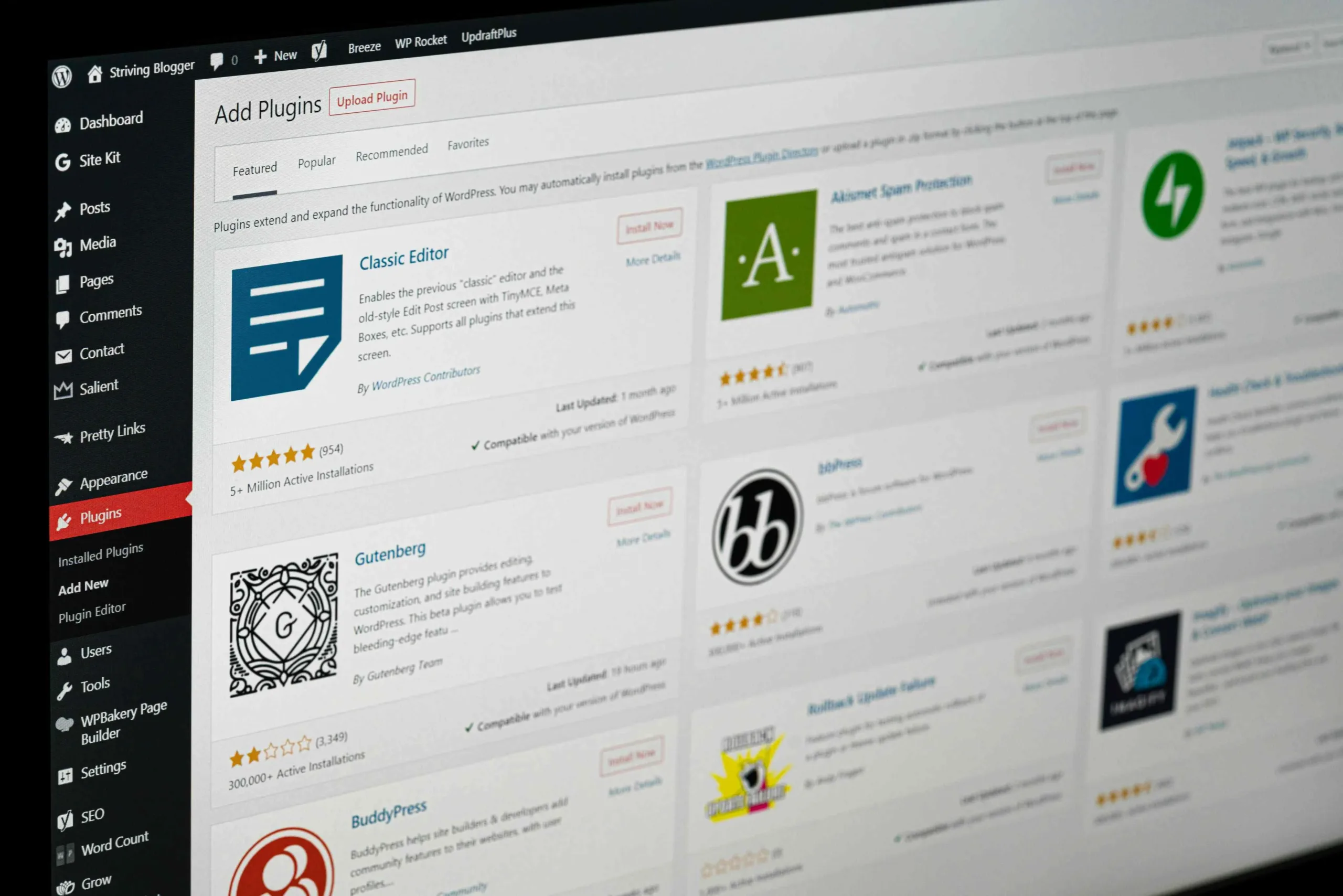
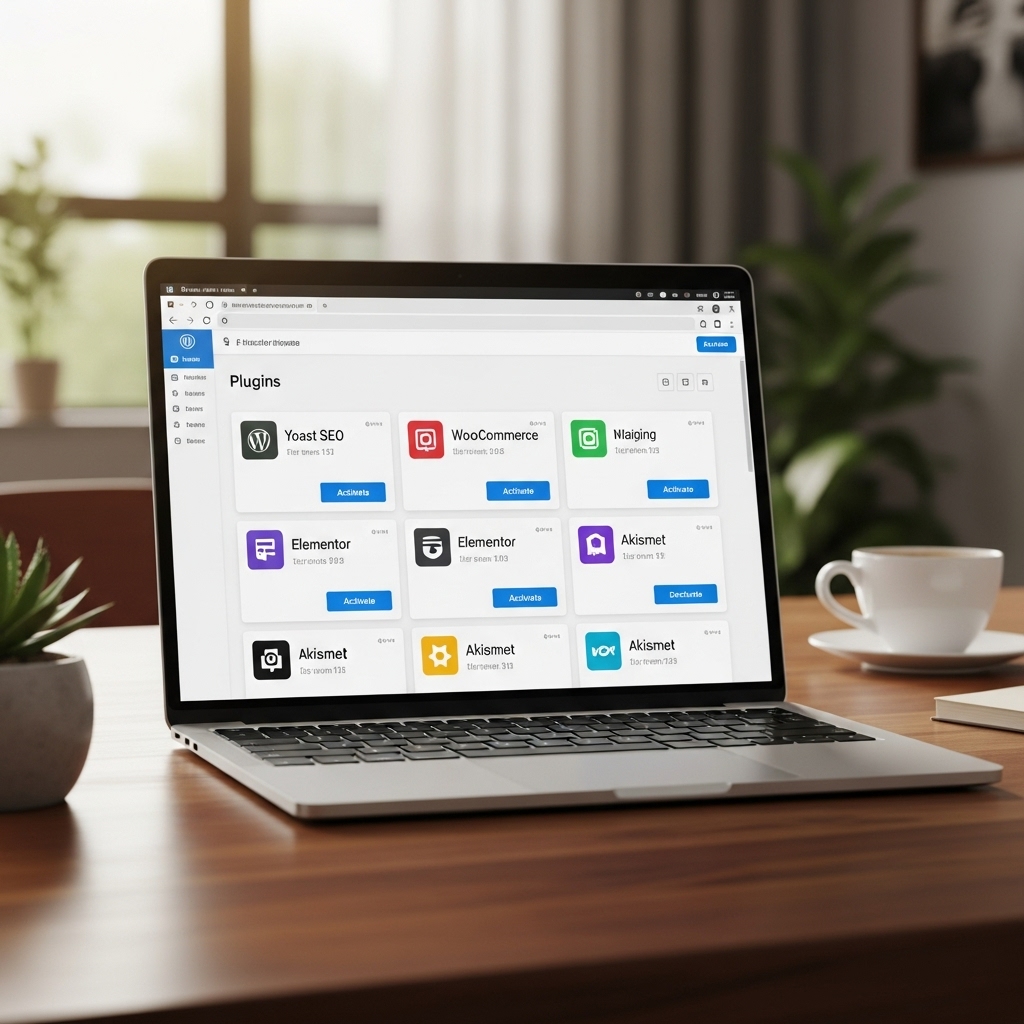
Open WordPress, then navigate to Plugins> Add New> Upload Plugin.
Upload the OceanWP Sticky Header zip from 8Muses.
Activate the plugin
Go to Appearance, then Customize, then Header, then Sticky Header.
Turn on Enable Sticky Header
Set trigger offset try 80 to 120 px.
Set sticky height and logo scale for the shrink effect.
Choose a sticky background and optional shadow.
Set device visibility and z-index to layer elements effectively.
Publish changes, then clear any cache and CDN.
How to Use
Leave sticky on for the whole site to keep navigation close at hand.
Turn it off on a landing page that needs a distraction free layout.
Pick a slightly darker sticky background for contrast.
Keep the sticky header a little shorter than the normal header.
Scale the logo a bit smaller for more reading space.
After any change, purge the cache and test on phones and tablets.
Performance
The 8Muses build is lightweight and efficient. Styles load with the theme, and scripts run only as needed. Transitions remain smooth and do not impact CLS. This plugin is compatible with cache and CDNs. After setting up or making edits, clear the cache to ensure updates are visible to visitors.
How to Disable the Sticky Header
Global off
Go to Appearance, then Customize, then Header, then Sticky Header, then switch Enable off, then Publish
Per page off
Edit the page, then open the OceanWP settings box, then turn sticky header off, then Update
Device based on
In the Sticky Header panel, uncheck desktop or tablet, or mobile as you prefer
Troubleshooting
The header overlaps the first section.
Raise the z index and add top spacing that matches the height of the sticky header.
Menu flickers
Clear the cache and make sure only one sticky feature runs at a time.
Mobile menu sits behind the header.
Raise the z index for the header and for the off-canvas menu.
Reviews
There are no reviews yet.
Be the first to review “OceanWP Sticky Header” Cancel reply
Reviews
There are no reviews yet.